

 De
De  Es
Es  Pt
Pt  En
En 

AutoSave and Backups in nanoCAD
How to Never Lose Your Work Again
Every CAD user eventually lives through the same nightmare: hours into a drawing, no save in the last twenty minutes, and then the power blinks, or the program simply freezes. What happens next depends on whether you know about the safety nets nanoCAD already runs in the background. There are three of them, they work differently, and understanding the purpose of each one can mean the difference between losing an afternoon of work and losing nothing at all.AutoSave: Your Automatic Safety Net
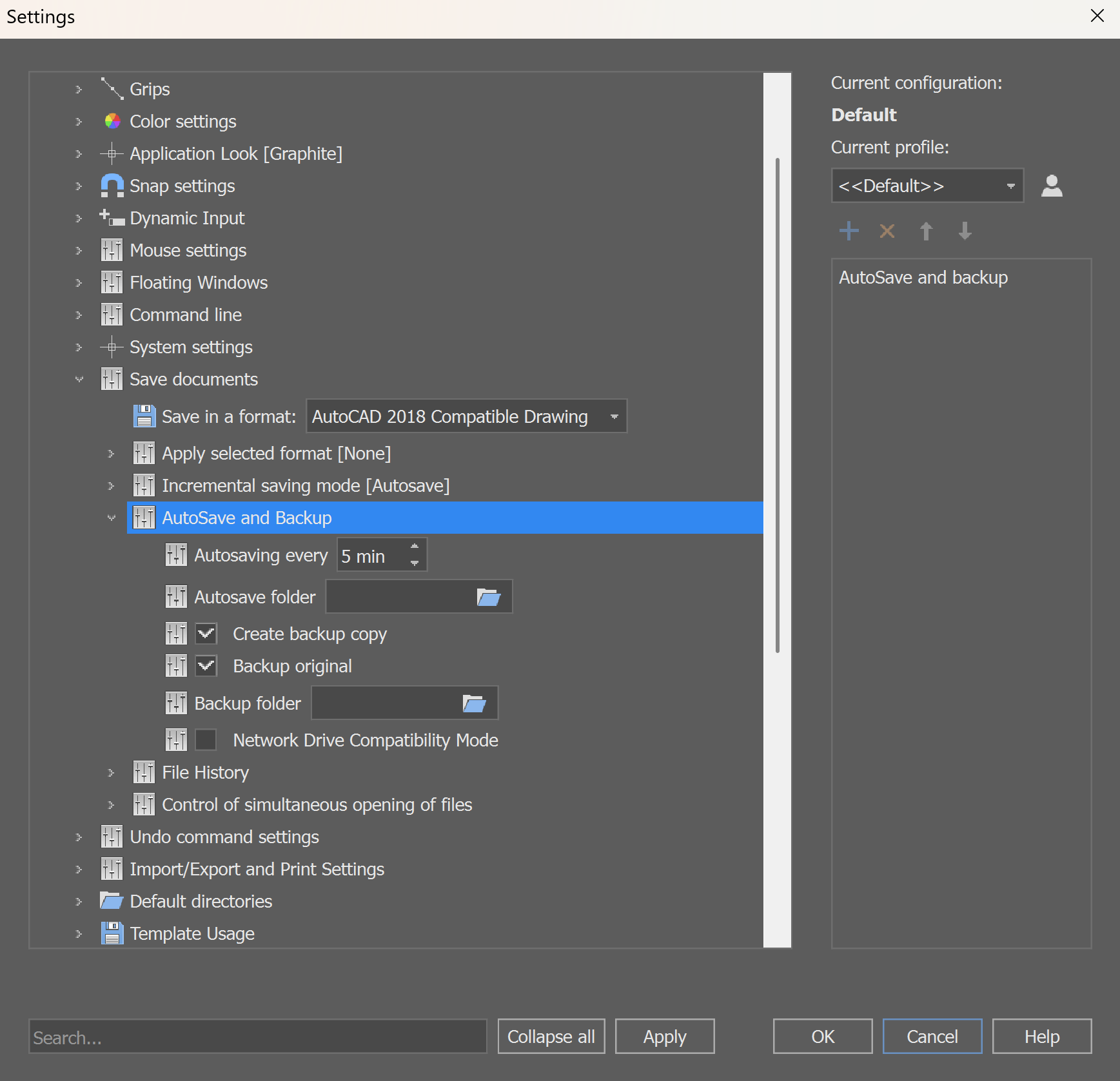
AutoSave does exactly what it sounds like: at a time interval you set, nanoCAD automatically saves your current unsaved changes to a temporary file without interrupting you. That file follows a very specific naming pattern: the original file name, followed by a timestamp in parentheses, followed by the .autosave extension. For example: MyProject.dwg.autosave. Note that the timestamp reflects the first autosave of the session, not the most recent one, so you cannot use it to determine how recent the data in the file is.By default, these files are placed in your Windows Temp folder, but the location is configurable in the AutoSave and Backup section of the Options dialog (Tools menu → Options), along with the interval itself in the "Autosaving every XX min" field. Setting it to 0 turns AutoSave off entirely - leave that field alone.
There's one automatic exception to know about: AutoSave pauses while you're working in REFEDIT mode (editing a block or external reference in place), and resumes as soon as you exit that mode.
Most importantly: if nanoCAD closes normally, the autosave file is deleted automatically. It only remains available when something goes wrong — a crash, a forced shutdown, a power failure. In other words, the file is preserved precisely when you need it most.
Recovering After a Crash
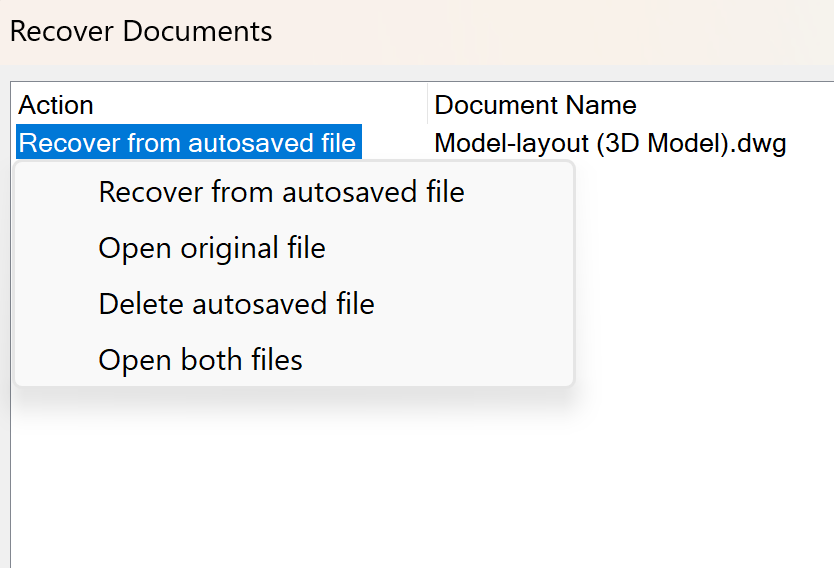
The next time you launch nanoCAD after an abnormal shutdown, you won't have to search for temporary files yourself. A Recover Documents dialog will open automatically, listing each affected file along with its original name, path, creation time, and the time of its last autosave. For each file, you get a choice:- Recover from autosaved document - opens the autosave file with all changes made up to the time of the last automatic save.
- Open original file - ignores the autosave version and opens the last version you actually saved yourself. The autosave file is not deleted and remains available in case you need it later.
- Delete autosaved file - removes the recovery copy without opening anything.
- Open both files - opens both the original and the recovered documents side by side, so you can compare them and decide which version to keep. The recovered version shows an asterisk indicating unsaved changes and the label “(Recovered)” next to the original file’s path in its title, and nothing is deleted until you decide.
If you ever need to open an autosave file manually outside of this dialog, simply rename it: strip out the parenthesised timestamp and change the .autosave extension to .dwg.
Backup Copies: A Different Kind of Safety Net
Separate from AutoSave, nanoCAD also keeps backup copies that are stored alongside your actual saved drawing, in the same folder, rather than in the Temp folder. Two types of these files are created automatically:- .original - a copy of the drawing as it looked the moment you opened it for this editing session. It's created once, on your first save of that session, and remains unchanged until you close and reopen the file. Think of it as “where I started today.”
- .bak - updated every time you save. It stores the state of the drawing immediately before your most recent save. This is especially useful when you realize you saved over something you actually wanted to keep.
Both can be enabled or disabled independently in the same AutoSave and Backup options section, using the Create backup copy and Backup original settings. You can also specify the folder where the files will be stored. Recovering from these files is just as simple as with autosave files: change the extension to .dwg and open the file normally.
File History: Going Back Further Than One Save
AutoSave and backup copies both protect you against the loss of recent changes: those made in the last few minutes or since the last save. But sometimes you need to go back much further: for example, to yesterday’s version or to the state of the file before a colleague made changes. That’s what Save File History is for.It builds on the same mechanism as AutoSave, but with one key difference: these versions are deliberately not deleted when the program closes normally. You can control how many versions to keep and for how long through a few settings in the Save Documents section of Options:
- Save file history - enables or disables the feature (variable FILEHISTORY).
- Number of stored file versions - sets the maximum number of previous versions for each file (FILEHISTORYMAX).
- File versions are stored for <N> days - sets the maximum retention period for versions (FILEHISTORYDURATION).
- File history folder - specifies the location where these versions are stored.
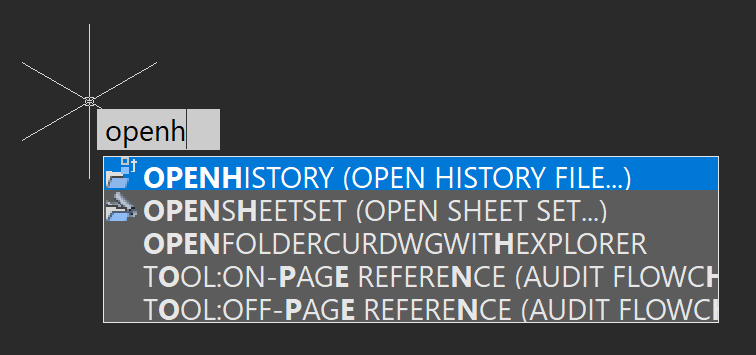
Files from the history are marked read-only, so you can't accidentally overwrite one. When you open one, you'll see a “(Read-only)” tag on the tab. To actually work with it, save a copy under a new name first. Old versions clear themselves out automatically: either when the maximum number of saved versions is reached, in which case the oldest one is deleted to free up space, or when nanoCAD closes and removes versions that have expired. To browse and open a version from history, use the Open file history command (OPENHISTORY).
Incremental Saving: Why Big Drawings Save Faster
One more setting shapes how the previous two features behave on large files: incremental saving. Instead of rewriting an entire drawing file every time you save, nanoCAD appends only what's changed since the last save. A full rewrite occurs only once those accumulated changes exceed half the size of the original file.The effect is most noticeable when working with large and complex drawings during AutoSave: saving is faster, and the pause during which the program writes data to disk is shorter. By default, incremental saving is only turned on for AutoSave; ordinary manual saves still perform a full rewrite unless you change that in the Incremental saving mode section of Options, where you can choose among Off, Autosave-only, and Save and Autosave.
Recommended Settings for Beginners
- Leave AutoSave on, with an interval you won't mind losing in the worst-case scenario (10-15 minutes is a reasonable starting point for most drawings).
- Keep both backup copy options enabled. They cost almost nothing and have saved more than a few careers.
- If you’re working on long-term projects on your own, turn on File History. It lets you revert to versions from previous days - something that regular autosave can’t provide.
- Leave incremental saving on unless you're specifically troubleshooting a problem related to file saving.
All these features seem unimportant until the very day you actually need them. But once the three levels of protection - AutoSave, backup copies, and File History are quietly running in the background, “I forgot to save” no longer means losing an afternoon of work. With your work safe, the next topic worth your attention is the program itself: how to reshape nanoCAD’s aliases, shortcuts, toolbars, and panels around the way you actually draw.
Set up your safety net before you need it
AutoSave, backup copies, and file history are all running from the first launch, and it takes about two minutes in the Options dialog to tune them to the way you work.Download nanoCAD Platform — free 30-day trial.
Want more guides, discussions, and contacts in your field? Join the nanoCAD Engineering Community.
nanoCAD Free, intended for non-commercial use, also includes autosave and backup features.