

 De
De  Es
Es  Pt
Pt  En
En 

Creating, Opening, and Saving Drawings
Creating, Opening, and Saving a DWG File in nanoCAD
Every drawing you produce in nanoCAD lives inside a single kind of file: the DWG. Before drawing your first line, it’s worth taking a few minutes to learn how to properly create, open, and save these files. This will help you establish a smooth workflow and avoid losing work if your computer crashes in the middle of a project.Starting a New Drawing
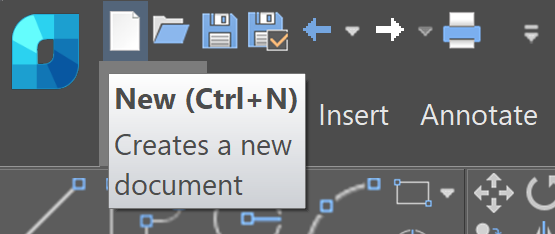
To open a blank document, press Ctrl+N, click New on the Quick Access Toolbar, or use the nanoCAD button's menu.
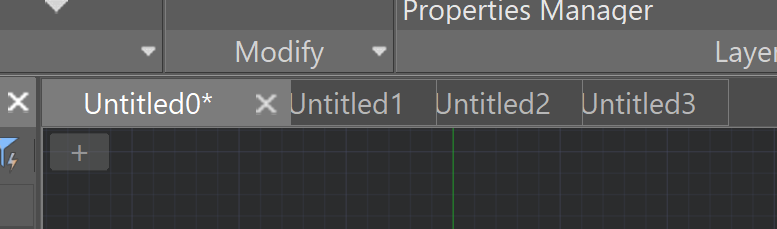
The first document you create in the current session is named Untitled0; every one after that gets the next number in line - Untitled1, Untitled2, and so on. As soon as you make a change that hasn't been saved yet, a small asterisk (*) appears next to the file name. It indicates that there are unsaved changes in the document.
Starting from a Template Instead
A completely blank drawing isn't always what you want. Most professional teams start new drawings from a template - a .dwt file that already has the units of measurement, drawing limits, layer structure, dimension and text styles, title blocks, and borders set up. Any changes made to a file created from a template are applied only to the new document and do not affect the template file itself. Therefore, the same template can be used for future projects.nanoCAD provides a set of standard templates (look for templates with "isometric" in their names if you need dimension styles already configured for isometric drawing). To pick one, use the Choose Template command from the nanoCAD button or the File menu.
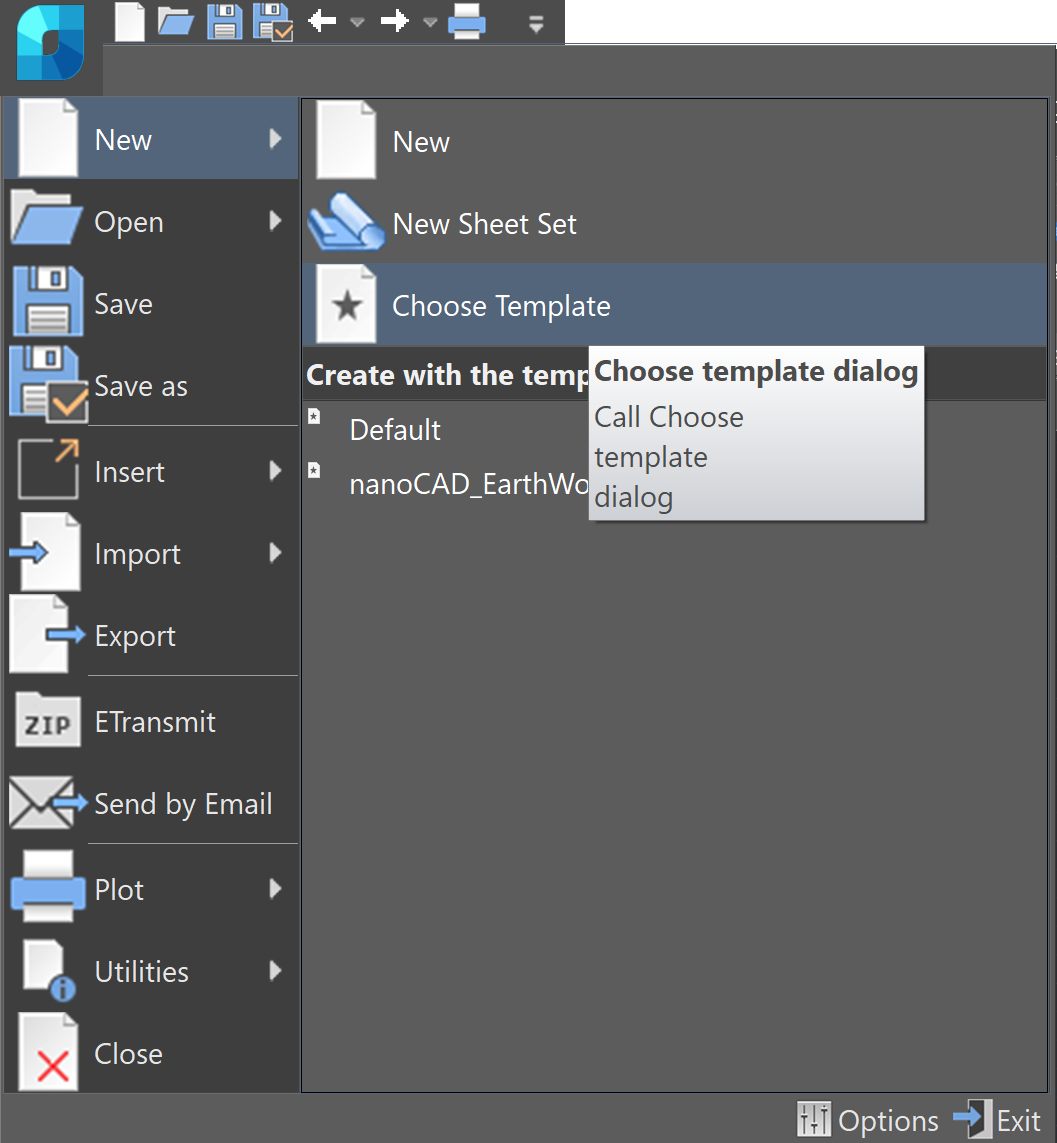
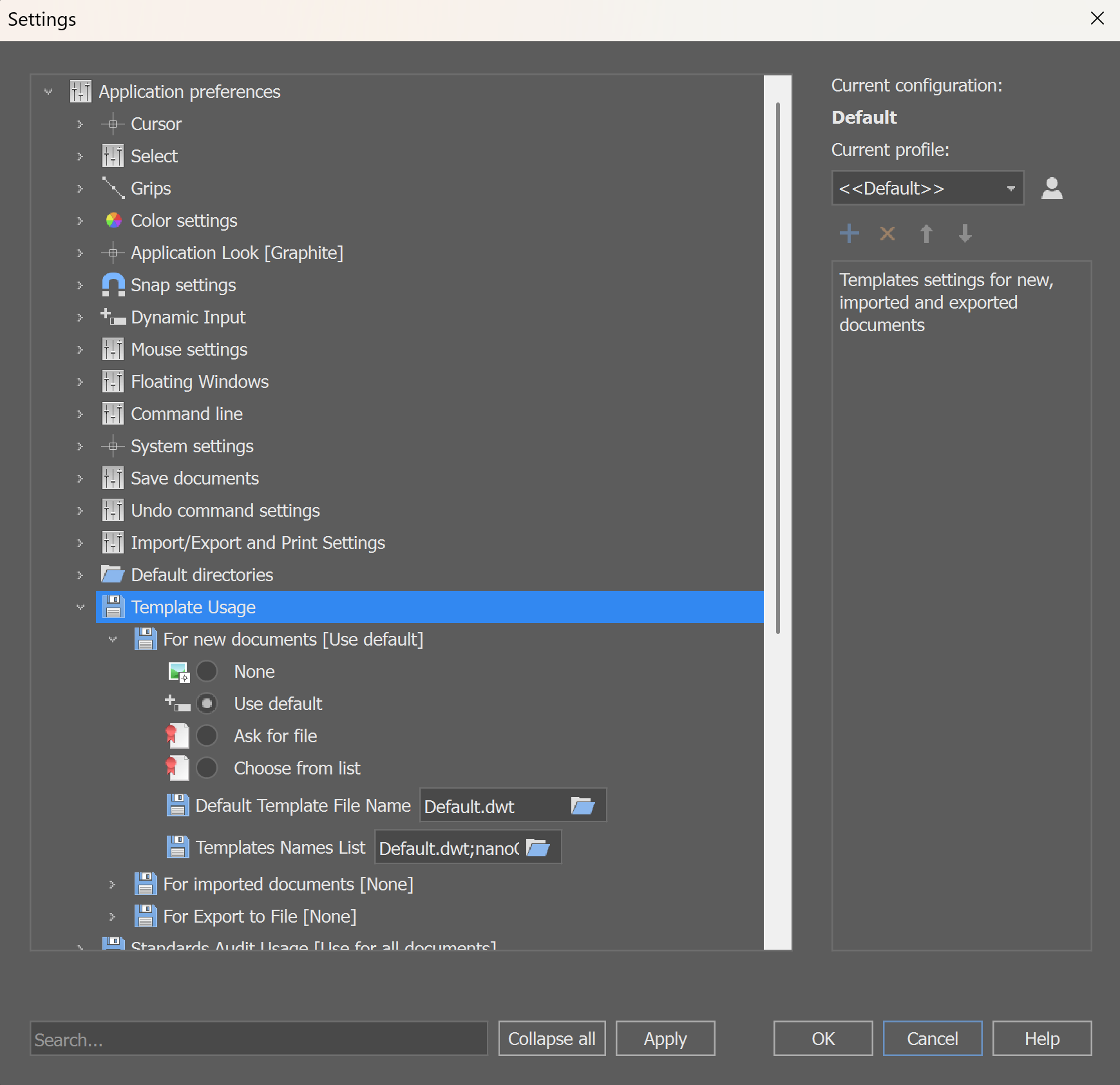
By default, two templates are available. To add your own, register it in the Template Usage section of the Options dialog, and it will appear alongside the built-in ones.
The Settings → Default Directories → Template File Location section shows where .dwt templates are stored.
Building your own template is also simple: set up a drawing exactly the way you want new projects to start — including layers, styles, title blocks, and other settings — and then save the file with a .dwt extension instead of .dwg.
You can watch the Creating custom DWT template video on the nanoCAD YouTube channel.
Opening an Existing Drawing
The Ctrl+O shortcut opens the standard file browser, but there are several other convenient ways to open files:- Drag a file straight into the nanoCAD window to open it, but be careful where you drop it. If you drag a file onto the title bar or an empty area of the tabs, it will open as a separate document. If you drag it into the drawing area of an already-open drawing, nanoCAD will insert the file as a block. Same gesture, completely different result.
- The nanoCAD button and the File menu both keep a list of recently used files and folders, so you rarely need to browse for something you opened yesterday.
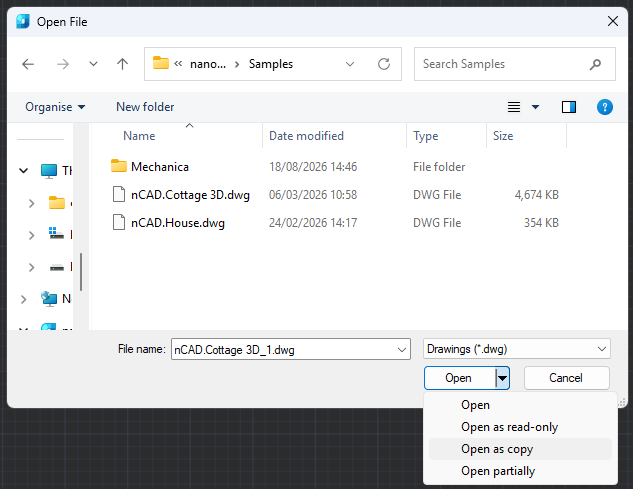
- If you only need to look at a file without risking changes, open it as read-only. If you want to experiment freely without modifying the original, choose Open as copy. nanoCAD will automatically add a "Copy (N)" prefix to the new file’s name. “N” is the instance number.
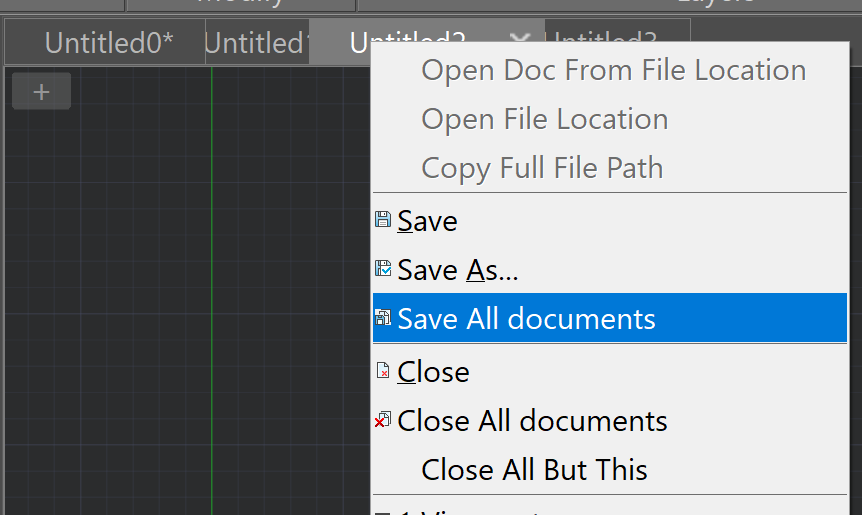
When several drawings are open at once, each gets its own tab along the top of the workspace. You can switch between them or use the Active Files button to choose the one you need. By right-clicking a tab, you can access convenient commands for working with multiple documents at once: Save All, Close All, Close All But This. These commands are especially useful when you have a large number of files open at the same time.
Saving Your Work
nanoCAD can save files in several different formats, which you can select from the same dialog:- DWG - the primary, default format, and the one you'll use in most cases.
- DXF - a data-exchange format, useful when transferring drawings to software that can't read DWG directly.
- DWT - the template format described above.
Save (Ctrl+S) overwrites the existing file using its current name and location. After the first save, the command executes immediately, without any additional prompts. Save As (Ctrl+Shift+S) always prompts you to specify a path and file name, which makes it the right choice whenever you want to create a copy, rename a file, or save it in a different format. The folder and format selected via Save As become the new default target for subsequent saves.
If you regularly exchange files with other programs, there is one thing to keep in mind: saving to DXF through Save or Save As keeps a complete copy of the drawing, including any unused layers, styles, and blocks that never actually appear in it. If you specifically need to remove these elements and keep only the data that is actually used, use the Export command instead. We'll cover it along with Import in a future article.
There's also a more specialized tool, the WBLOCK command, which can be entered directly at the command line. It lets you save an entire drawing — or just a selected block or group of objects — to a separate file. It’s a natural companion to working with blocks, a topic that will get its own dedicated article later in this series.
A Safety Net You Shouldn't Turn Off
Two features work quietly in the background to protect you from crashes and mistakes, and both deserve a mention even before we cover them in full detail in a dedicated article:- AutoSave periodically writes your current work to a temporary file at an interval you can set in the Options dialog. If nanoCAD or your computer shuts down unexpectedly, the next launch offers to recover your work from that file.
- Backup copies (.bak and .original files) are kept alongside your saved drawing, allowing you to revert to a previous version if something in the working file goes wrong.
Closing a Document
Ctrl+F4, the close button on the document window, and Close from the nanoCAD button's menu all do the same thing: if there are unsaved changes, nanoCAD will first ask you to save them. Closing a brand-new, never-saved document will open the Save dialog instead, so you're not at risk of losing work you haven't named yet.Quick Recap for Beginners
- New blank drawing: Ctrl+N. New from template: Choose Template from the nanoCAD button.
- Open: Ctrl+O, or just drag the file in — but drop it onto a tab, not the drawing area, unless you actually want it inserted as a block.
- Save: Ctrl+S for your existing file, Ctrl+Shift+S whenever you need a new name, location, or format.
- Leave AutoSave and Backup switched on. They can save your work if something goes wrong.
Once creating, opening, and saving files feels automatic, it’s worth addressing one more important issue: what happens to your work when something goes wrong. Next, we’ll look at the three layers of protection running quietly in the background — AutoSave, backup copies, and file history.
Create your first DWG today
Templates, drag-and-drop opening, DWG/DXF/DWT saving — none of it takes long to learn, and the fastest way to make it automatic is to do it once yourself.Download nanoCAD Platform — free 30-day trial.
Want more guides, discussions, and contacts in your field? Join the nanoCAD Engineering Community.
For basic 2D drawing and non-commercial use, there is also nanoCAD Free.