

 De
De  Es
Es  Pt
Pt  En
En 

Getting to Know the nanoCAD Interface
Ribbon, Command Line, Panels, and Status Bar
Open nanoCAD for the first time and you're faced with a big workspace: a ribbon (or a menu bar, depending on your setup), a strip of icons in the corner, a scrollable text panel at the bottom, and a status bar packed with tiny buttons.This article walks through the main elements of the nanoCAD workspace one at a time, so you know exactly where to look when you need something.
Two Interface Styles, One Program
Before you start, it is helpful to know that nanoCAD is actually equipped with two different interfaces:- Ribbon interface — a modern, tabbed layout where tools are grouped by task (Home, Insert, Annotate, and so on). This is the default view for most new installations.
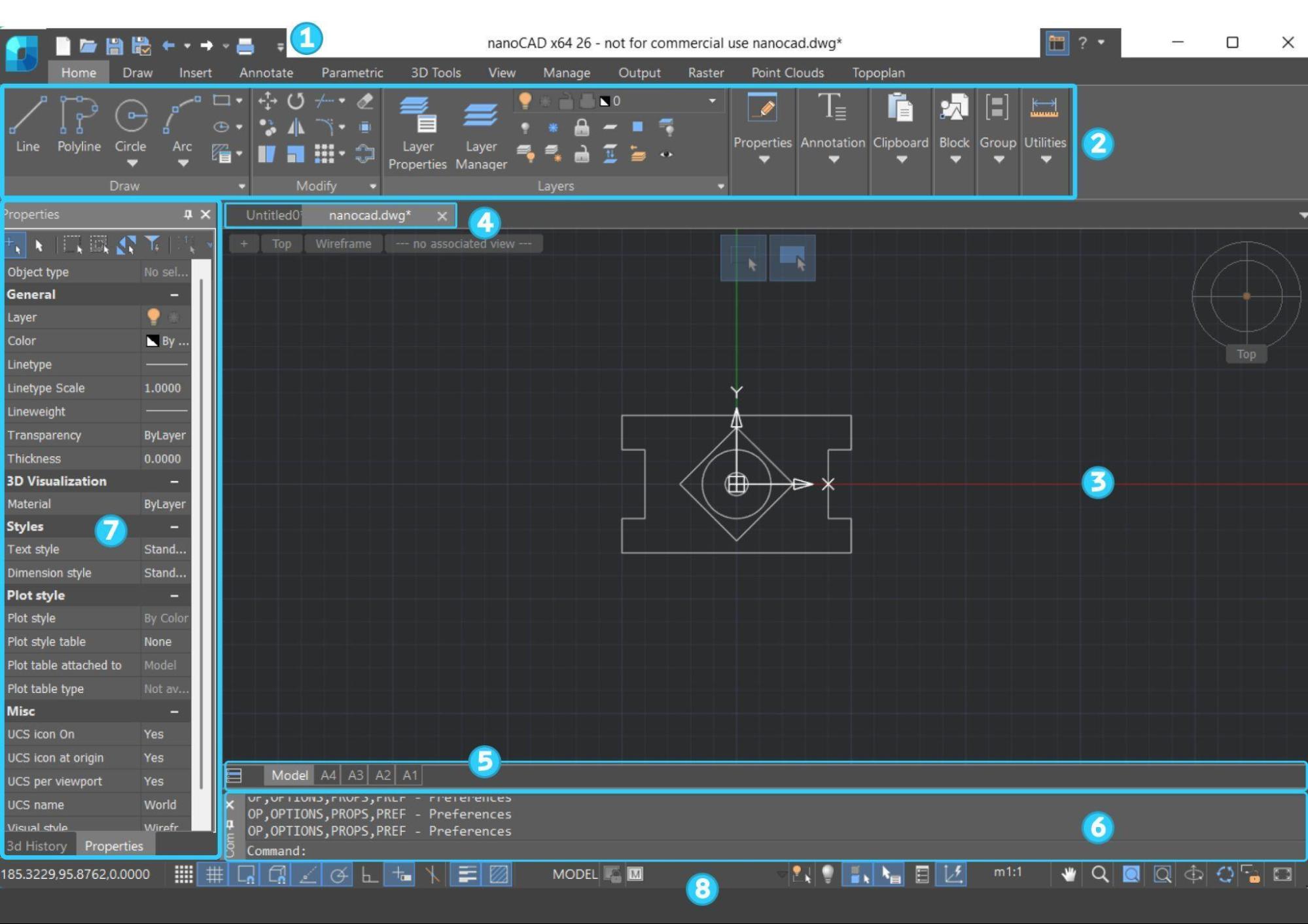
Fig. 1. Ribbon interface
- Classic interface — a traditional main menu plus toolbars layout, closer to what long-time users of other CAD programs are used to.
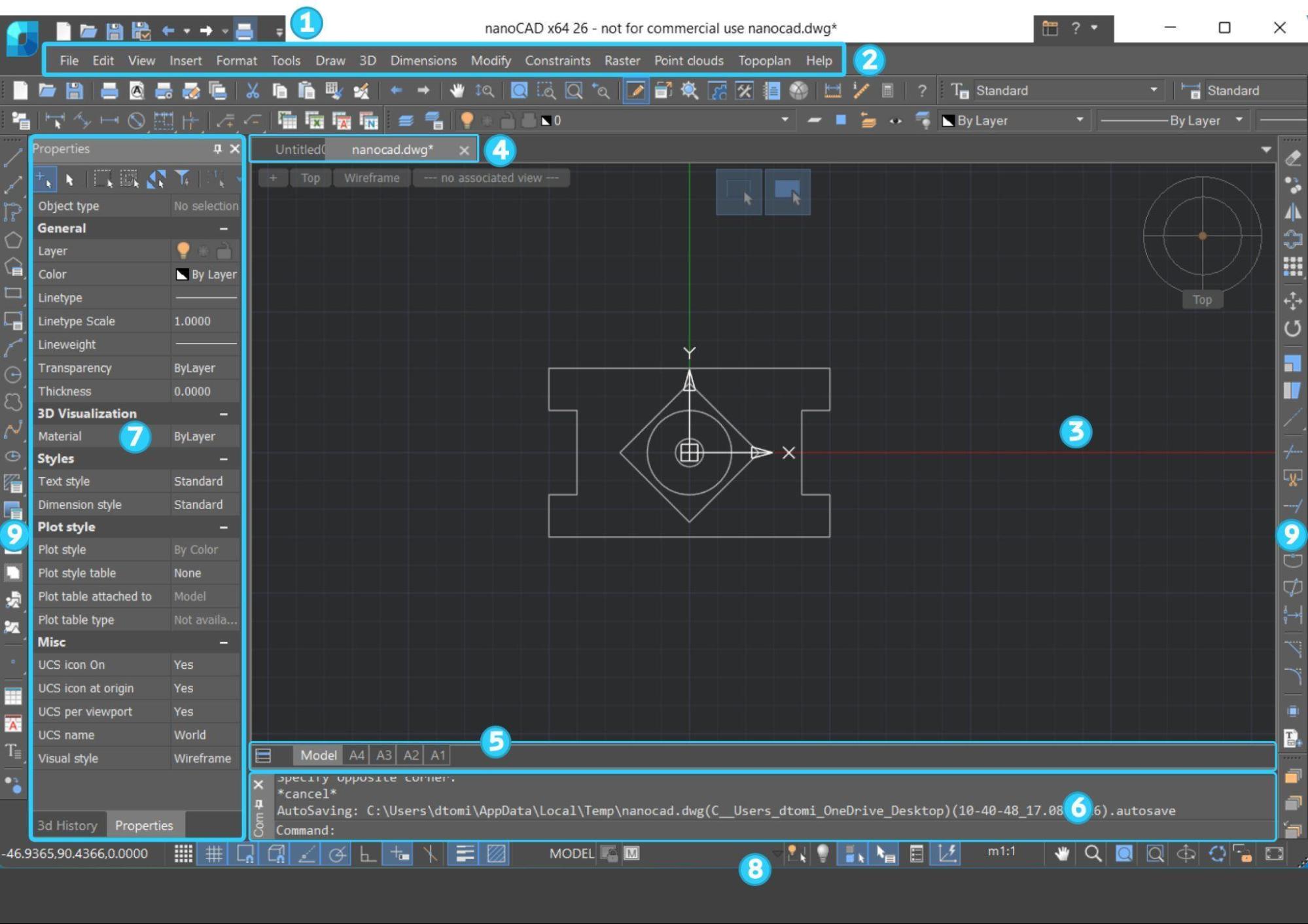
Fig. 2. Classic interface (with main menu and toolbars instead of ribbon)
- The nanoCAD button and the Quick Access toolbar
- Ribbon / Main menu
- Drawing window
- Document tabs
- Document layouts’ tabs
- Command line
- Properties bar
- Status bar
- Toolbars
You can switch between the two interface styles depending on how you prefer to work. A button
 in the upper-right corner of the program window switches the ribbon on and off, and typing RIBBON into the command line does the same thing.
 The nanoCAD Button and Quick Access Toolbar
In the top-left corner you can find the nanoCAD button — the one with the program logo. Click it and you can access the file management, printing, and document utility commands: audit, restore, recover, purge etc. The list of recently used files and folders is also displayed here. The Options button
  opens the Options (OPTIONS) dialog box to manage nanoCAD settings.
 Right next to the nanoCAD button is the Quick Access Toolbar, which holds the most commonly used commands for creating, opening, saving, and printing a document, along with Undo and Redo for the changes you make.
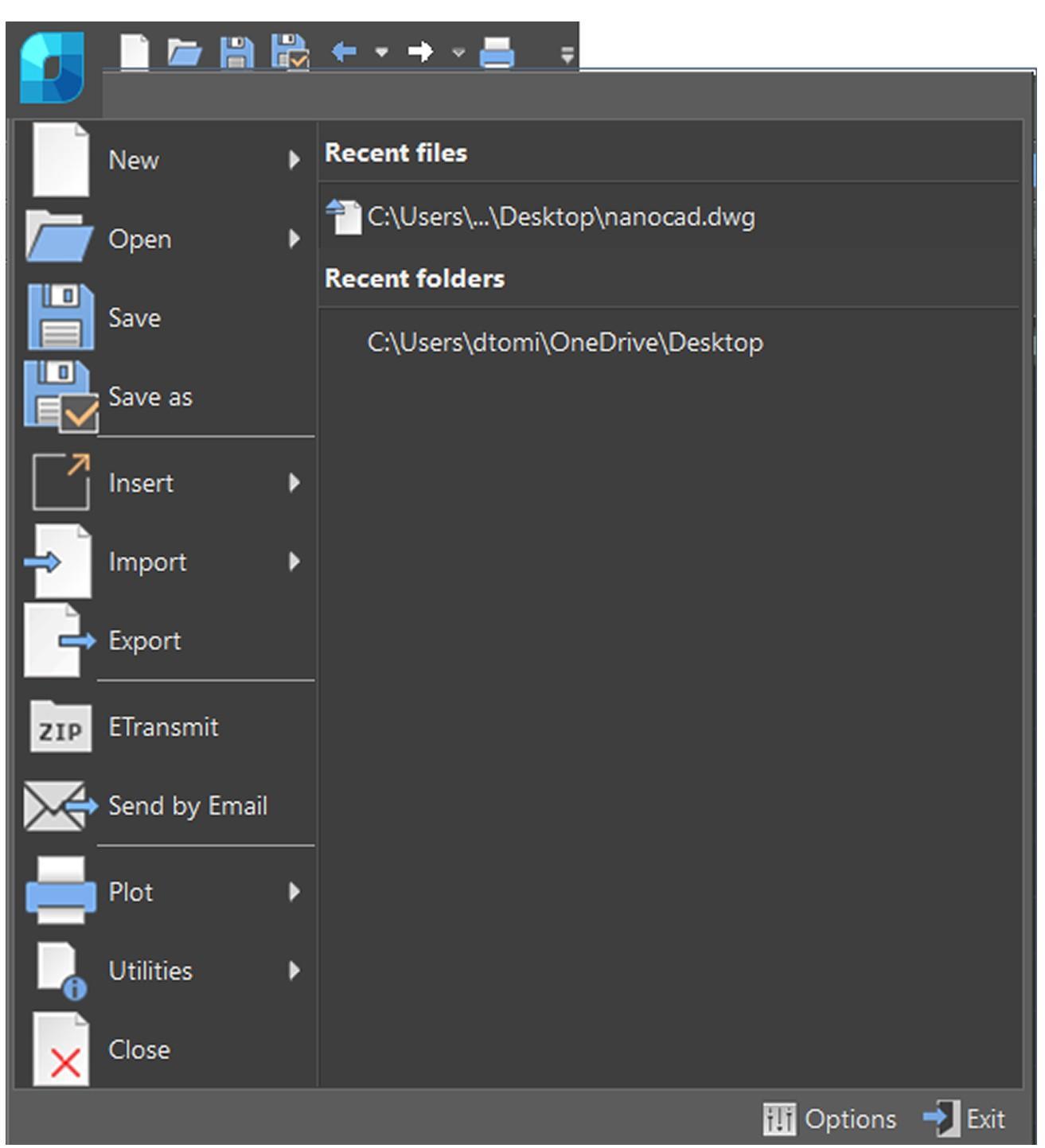
Fig. 3. The nanoCAD button and Quick Access Toolbar
The Ribbon: Tools Organized by Task
The Ribbon contains a set of tabs with controls and tools for creating and editing a drawing. The ribbon interface consists of several parts:- Tabs group tools by the kind of task you're doing. To select a required tab, click its name on the ribbon.
- Groups are sets of command buttons and controls. The group names are located at the bottom of the ribbon.
-
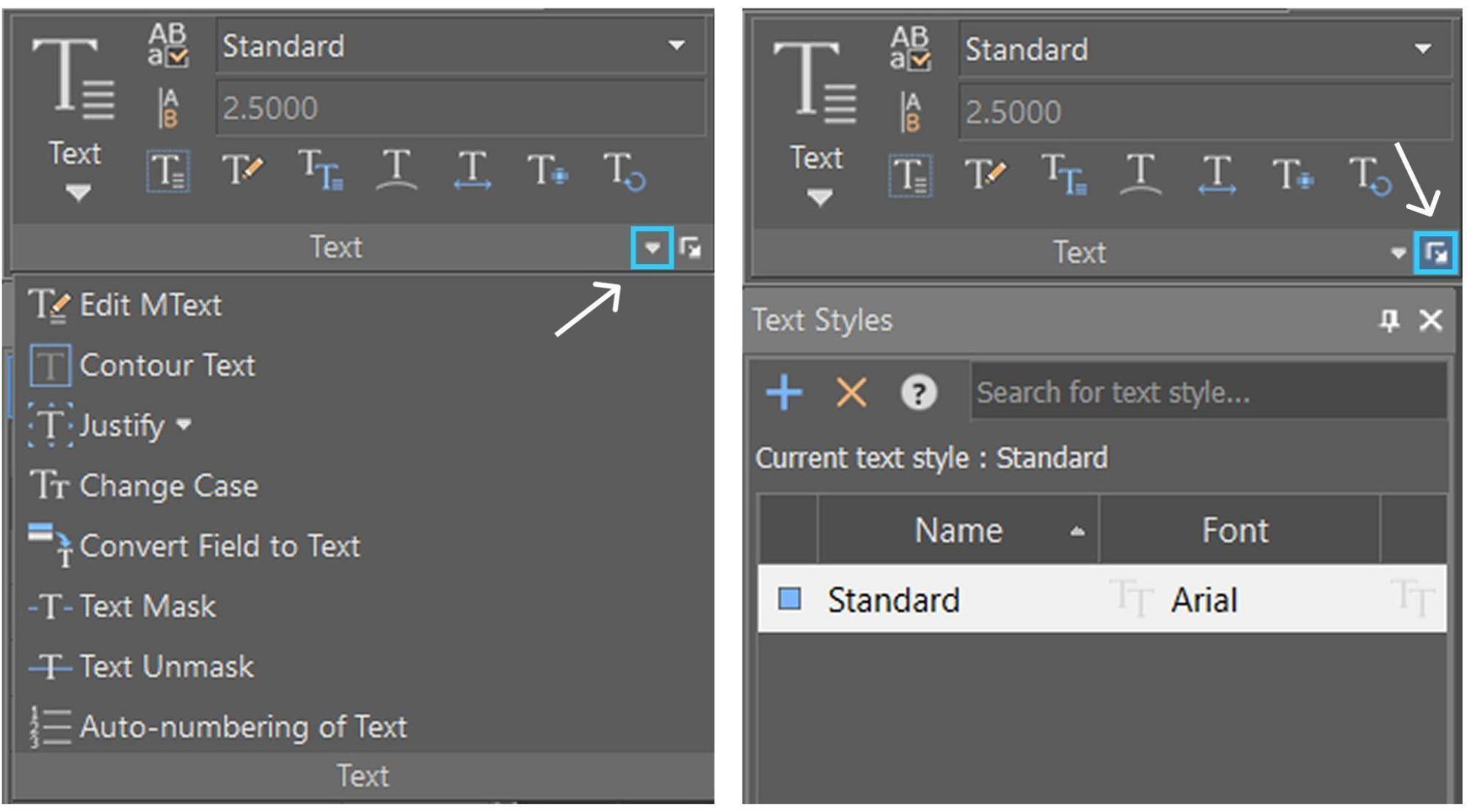
Some groups have a small arrow
 next to their name — click it to expand additional items of the group (buttons and tools). Others have a dialog launcher button
  , which opens the full settings window for that group.
- Contextual tabs appear only when they're relevant — for example, while you're editing a block or working inside a table. They disappear again once you exit editing mode.
- The view of the ribbon depends on the size of the program window. As the window width decreases, some buttons get smaller. If the window width decreases even more, some command groups collapse into a drop-down menu.
The Main Menu and Toolbars
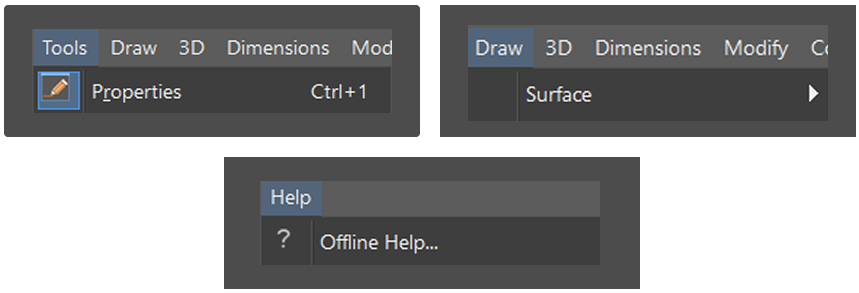
In the classic interface, the drop-down menu bar is available — it's organized by function (File, Edit, View, Insert, Format, Tools, Draw, Modify, Dimensions, and more, with extra menus like 3D, Raster, or Point Clouds). Because it's arranged as a flat list rather than icon groups, it works as a quick way to discover a command.

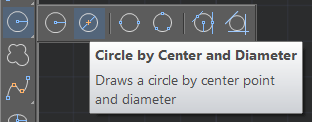
A small arrow in the corner of a button means it's actually a group of related tools, press and hold the left mouse button on this button — an additional panel with group commands should open.
The Drawing Window: Where the Work Happens
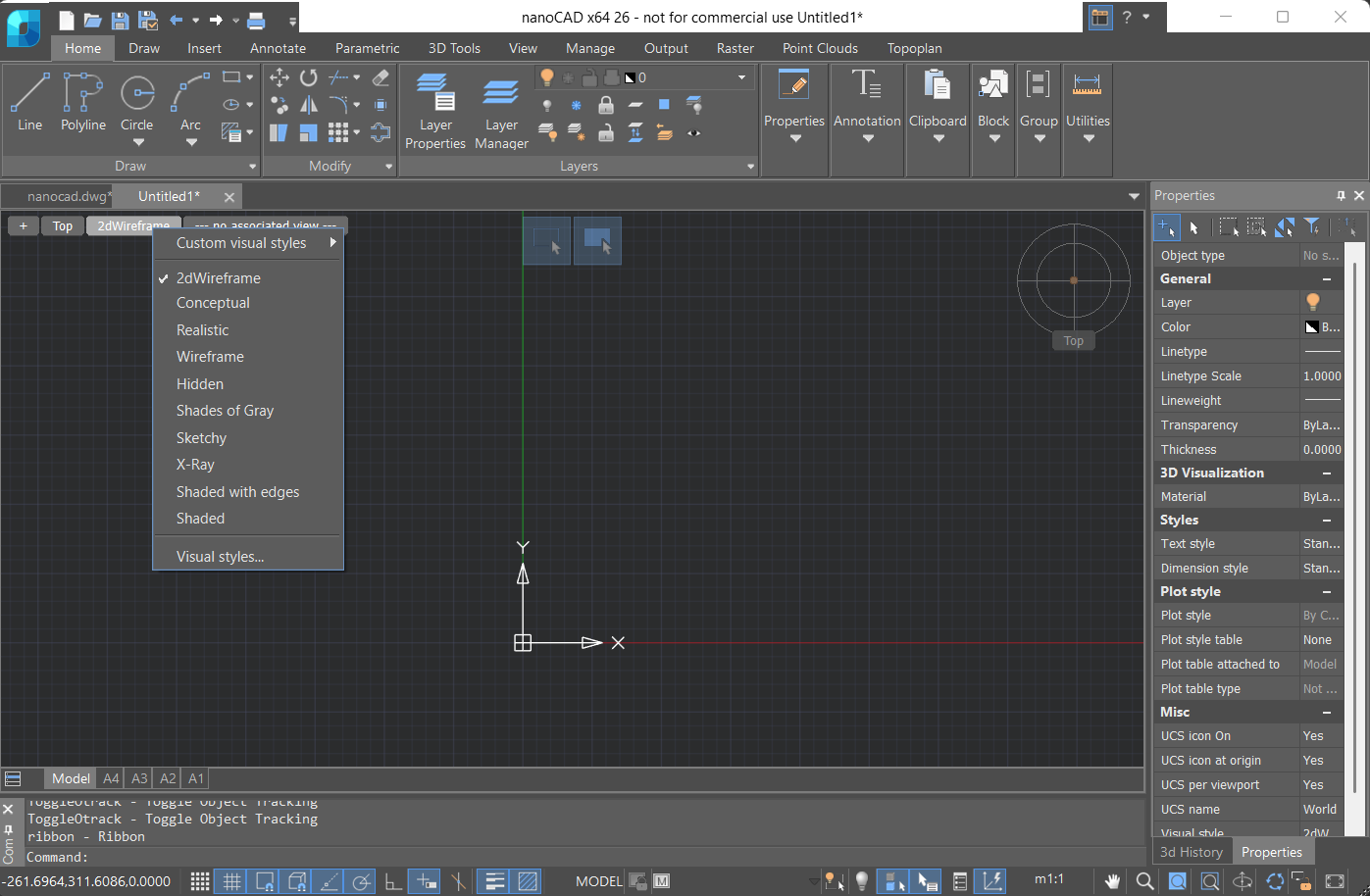
The center of the screen is the drawing window — your canvas. A few smaller tools live right on top of it:- A view control widget for switching between visual styles and views.
- A locator, an orientation tool that shows the current model orientation and switches between 2D and 3D views.
- The UCS icon is placed in the default coordinates: X=0; Y=0; Z=0, showing you where your current coordinate system's origin and axes are.
- A crosshair cursor for drawing and selecting — its size, shape, and color are all adjustable.
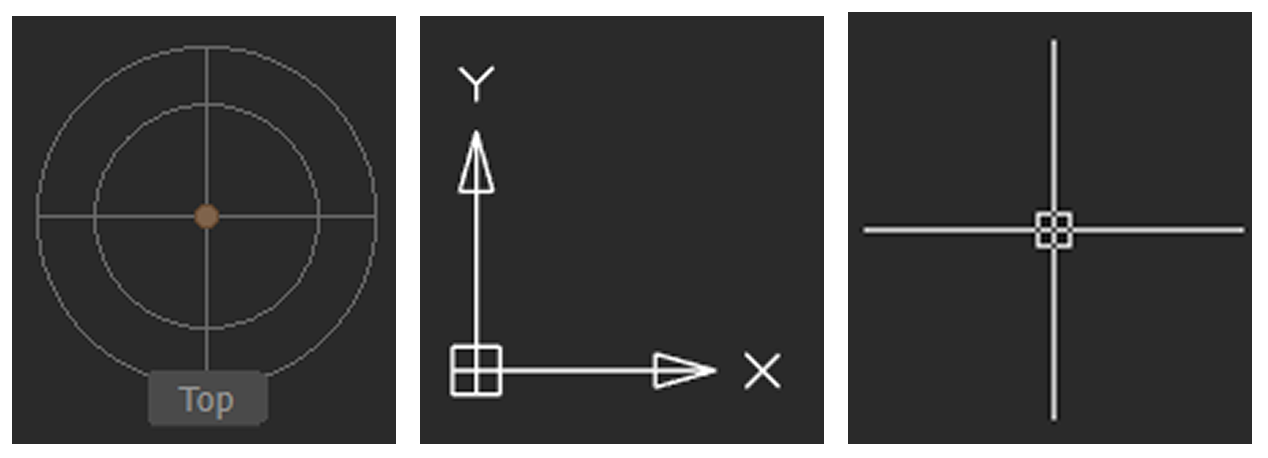
Locator, UCS icon, cursor
Along the bottom of the drawing window, tabs let you flip between model space and any layout (paper space) views you've set up.The Command Line: More Powerful Than It Looks
The command line is used to enter commands from the keyboard, to show tooltips and nanoCAD messages, to select the options of the selected command. You can type a command's full name and press Enter, but almost every command also has a short alias: instead of typing CIRCLE, typing C does the same job.You can read more about shortcuts in our community: nanoCAD shortcuts and command aliases guide

The command line accepts mathematical expressions, not just commands, numbers, and points. To calculate a mathematical expression at any time, type the ? sign before the expression and press Enter.
Functional Bars (Palettes)
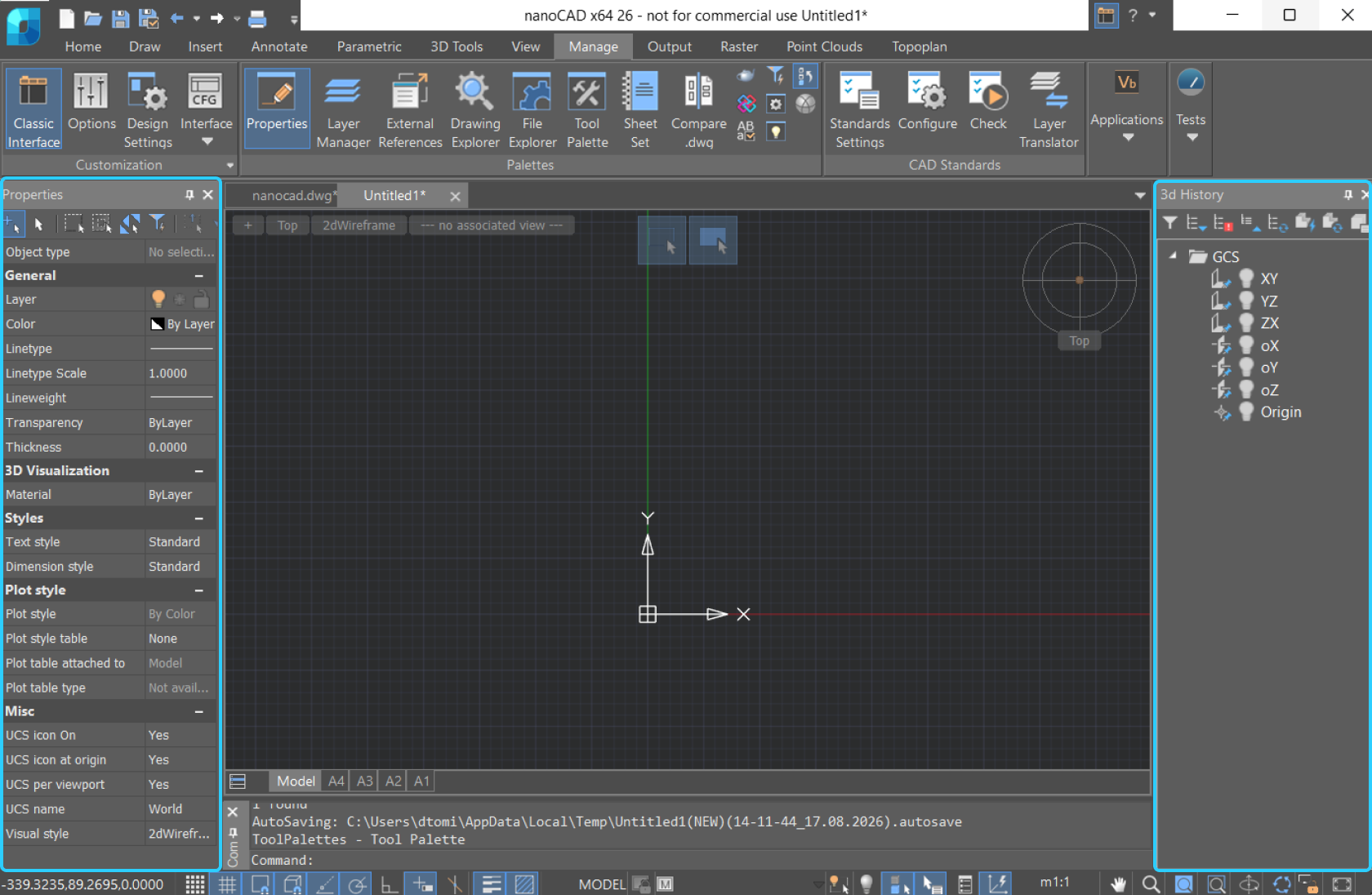
Panels like Properties, Layers, or External References are what nanoCAD calls functional bars — and they behave differently from an ordinary dialog box. A regular dialog blocks you from doing anything else until you close it; a functional bar doesn't. You can keep the Properties panel open while you keep drawing: it updates its content on the fly, reflecting up-to-date information about the drawing, its properties, and objects.Several of these panels can be docked together and switched between using small tabs at the bottom.
The Status Bar
The status bar at the bottom of the application window provides quick access to drafting and display settings — snap to grid (F9), show grid (F7, Ctrl+G), object snap (F3), object tracking (F11), polar tracking (F10), ortho mode (F8), and dynamic input (F12). The status bar also shows your cursor's live coordinates, and includes a button for switching between model space and paper space.Getting Started
- Start with the interface you are comfortable with. The Ribbon organizes commands into tabs and groups, while the Classic interface provides access through the main menu and toolbars. Choose the one that fits the way you prefer to work.
- Use the command line. When you are unsure what to do next, look at the command line before clicking around the interface. For example, while drawing a circle, nanoCAD can prompt you to specify the center point and then offer additional options. You can enter the required value, choose an option, or accept the default value by pressing Enter.
- You can change the program visual style in the Application Look section in the Options dialog.
See it for yourself
Once these become familiar, you can gradually customize the Ribbon, toolbars, panels, and shortcuts around your own workflow. nanoCAD provides several ways to launch the same command — including the Ribbon, menus, toolbars, context menus, command line, and keyboard shortcuts — so you can choose the method that is most convenient for a particular task.Watch the nanoCAD Interface video lesson.
Download nanoCAD Platform — free 30-day trial.
Want more guides, discussions, and contacts in your field? Join the nanoCAD Engineering Community.