

 De
De  Es
Es  Pt
Pt  En
En 

Coordinates, Units, and Scale
The Basic Logic of CAD
If you're coming to nanoCAD from programs like PowerPoint, Illustrator, or Photoshop, the first thing you need to do is change your usual mindset: you are not drawing a picture of an object. You are drawing the object itself, at its actual size. A wall isn’t “however big looks good on screen” - it’s 5,000 millimetres long because that’s how long it will be in reality. A bolt isn’t just a decorative circle - it’s 12 mm in diameter because that’s its real diameter.Once you understand this principle, it becomes much easier to grasp coordinates, units of measurement, and scale — three concepts that cause difficulties for nearly every CAD beginner. In this article, we’ll explore all three, since in essence they describe the same principle from different angles.
Units: Deciding What “1” Means
Before you start working with actual objects, nanoCAD needs to know what a single unit actually represents. You can define this in the Drawing Units dialog (Format menu → Units, or type UNITS).
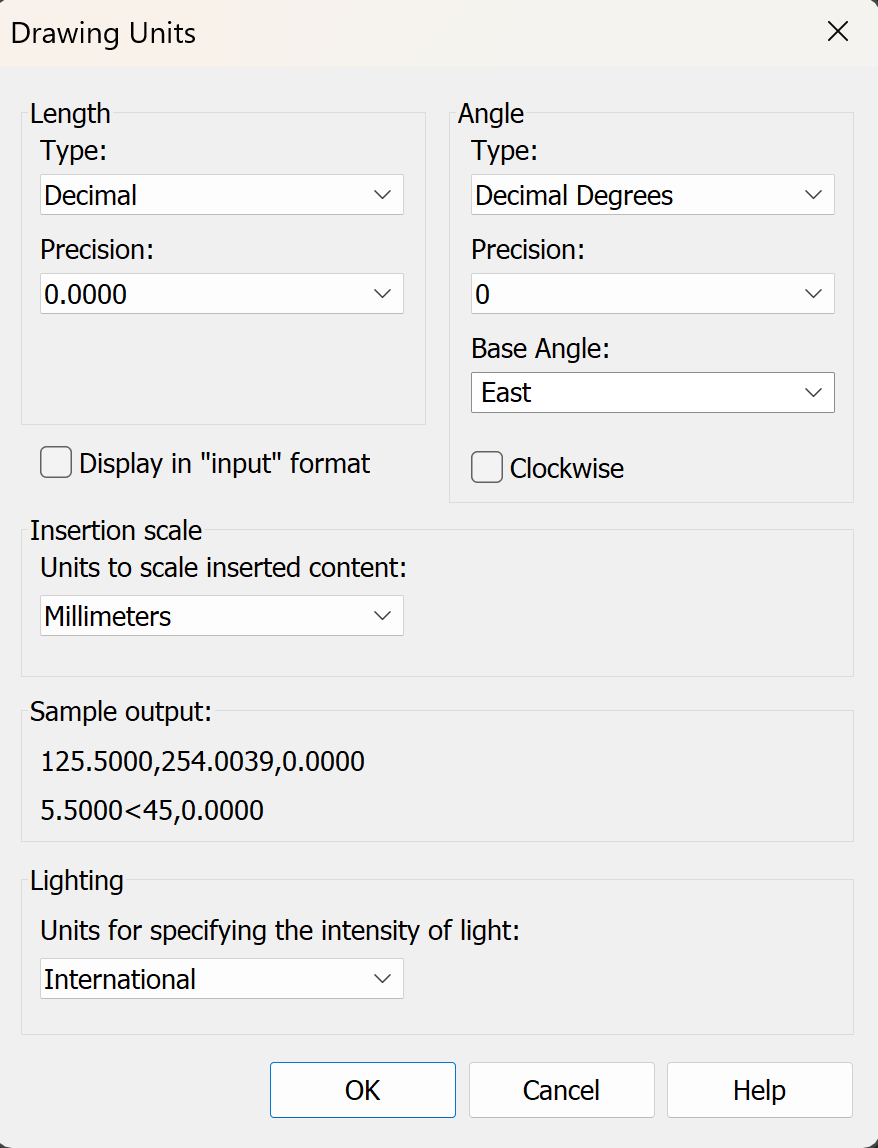
Under Length, the Type list determines how numbers are written and displayed:
- Decimal - standard numbers like 15.50. This is the most natural option for metric work and for most other decimal-based unit systems.
- Architectural - feet and fractional inches, such as 1’-3 1/2".
- Engineering - feet and decimal inches, like 1’-3.50".
- Fractional - such as 15 1/2, without feet.
- Scientific - exponential notation, for when numbers get very large or very small.
The Precision list controls only the number of decimal places displayed or the precision of a displayed fraction. It doesn't change the actual value stored for any object. You can always increase or decrease the displayed precision later without touching your geometry.
Under Angle, the Type list works the same way, with its own set of choices (Decimal Degrees, Degrees/Minutes/Seconds, Grads, Radians, Surveyor's Units). There's also one setting people regularly forget exists: Base Angle. By default it is set to East, so 0° points East and angles increase counterclockwise, but you can pick a different base direction, or tick Clockwise to measure angles the other way, if your discipline uses a different convention.
Practical tip: set the units before you start drawing, ideally as part of a template (see our article on creating, opening, and saving files) — rather than after you’ve already placed a hundred objects at the wrong scale of measurement.
Coordinates: Telling nanoCAD Exactly Where a Point Is
Every point you place in a drawing (such as the end of a line or the center of a circle) has a specific position, and nanoCAD offers several ways to specify it.Cartesian Coordinates
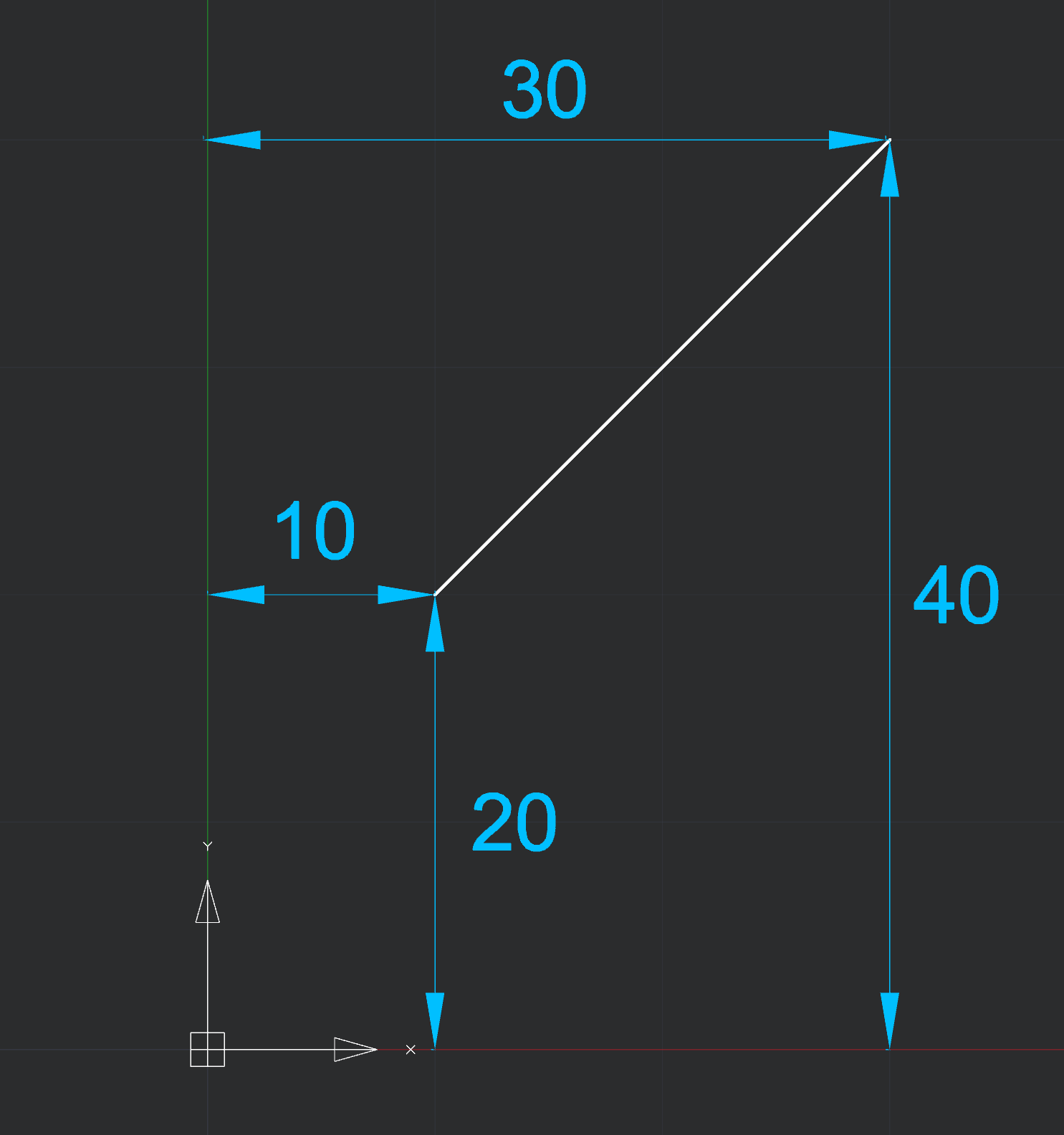
This is the X, Y coordinate system you already know from school — with a Z axis added once you move into 3D. The origin is at (0,0,0); X increases to the right, and Y increases upward. There are two ways to use it:Absolute coordinates are measured from the origin itself, and they're useful when you know the exact position of an object in the drawing:
Command: LINEThat draws a line starting at a point 10 units right and 20 up from the origin, ending at 30 right and 40 up.
Specify first point: 10,20
Specify next point: 30,40
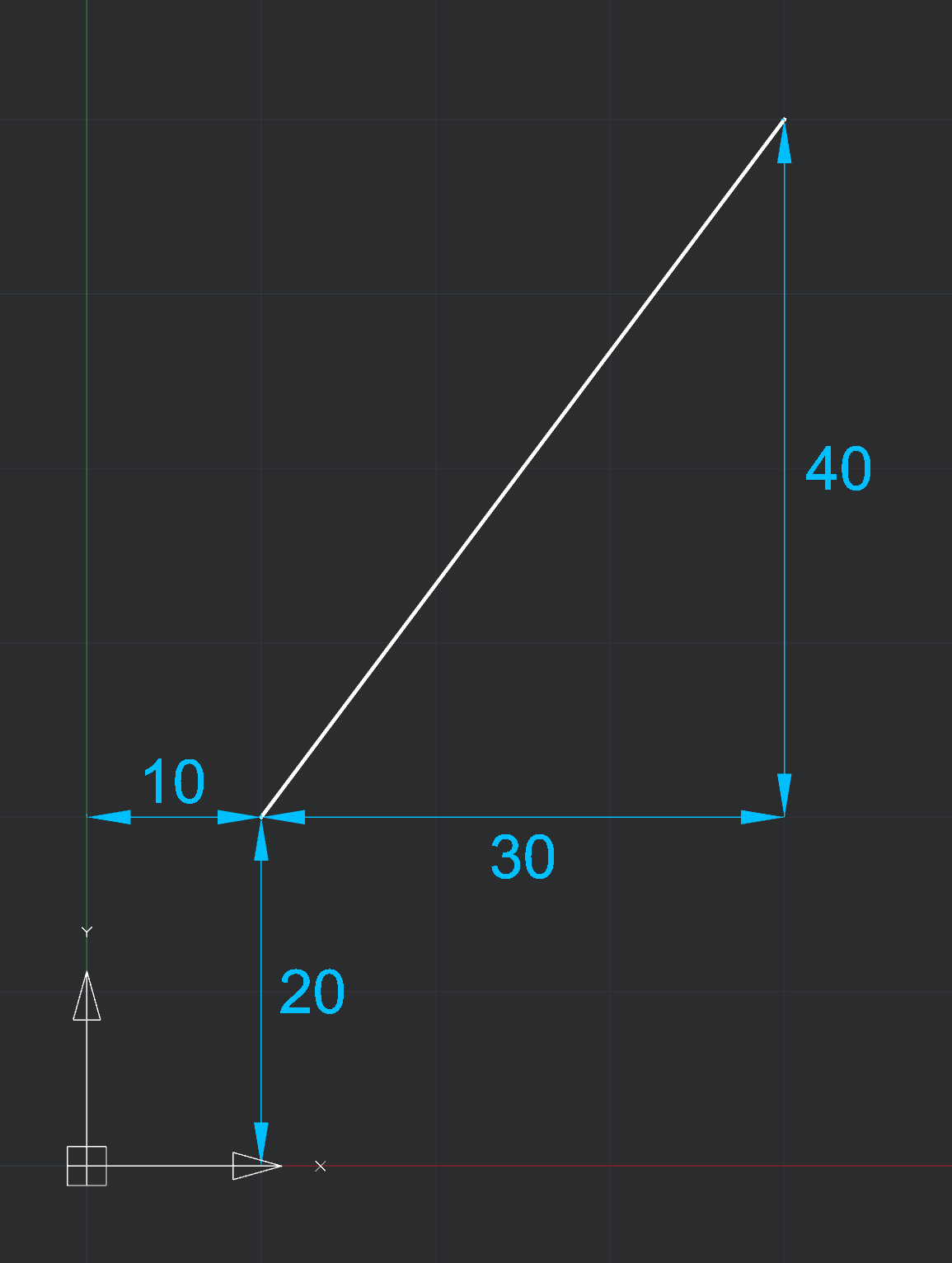
Command: LINEThe starting point remains the same, but now the endpoint is defined as “30 units right and 40 units up from the previous point”. As a result, it lands at 40,60 — a different point from the one in the previous example.
Specify first point: 10,20
Specify next point: @30,40
Polar Coordinates
In some cases, it is more convenient to specify a distance and an angle rather than an offset along two axes. For example, this is useful when drawing a diagonal brace or any element whose position is defined as “a certain distance in a given direction.” Polar coordinates use the format distance<angle:Command: LINEThe first point is 20 units from the origin at a 45° angle, and the second is 50 units from the origin at 30°. As with Cartesian coordinates, polar coordinates can also be relative — @40<30 means “40 units away from the previous point, at a 30° angle,” rather than measuring from the origin.
Specify first point: 20<45
Specify next point: 50<30
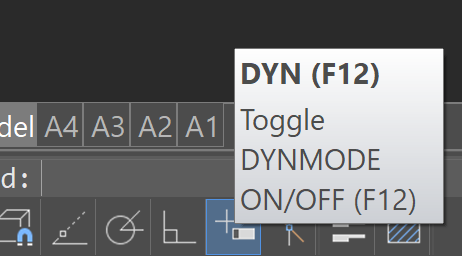
One more thing to keep in mind before you try these. Both sets of examples above assume Dynamic Input is switched off. With Dynamic Input on (the F12 toggle on the status bar), anything you type after the first point is treated as relative by default — so 30,40 and 50<30 will be measured from your previous point, not from the origin, and you'll get a different line from the one described here. If your results don't match, check Dynamic Input (F12) first: turn it off and the absolute coordinates above will behave exactly as shown in the examples.
Direct Distance Entry — The Shortcut You'll Actually Use Constantly
In practice, much of everyday drawing work doesn't need typed coordinates at all. Instead: point your mouse in the desired direction and enter the length. nanoCAD will create the object at the specified distance in the direction of the cursor. If you enable Ortho mode first, this method becomes one of the fastest ways to draw walls, edges, and anything else that runs horizontally or vertically.Coordinate Filters (Good to Know, Not Urgent)
One more tool deserves a mention, even though beginners rarely need it: coordinate filters (.x, .y, .xy, and so on) let you build a single point out of coordinates picked from two different places. For example, you can take the X-coordinate from the midpoint of one edge and the Y-coordinate from the midpoint of another, to place a point exactly at the center of a rectangle without any calculations. For now, simply remember that this feature exists. You can learn more about it later, when you encounter a practical situation that requires it.A Quick Note on World vs. User Coordinate Systems
Everything described above applies to the default, fixed World Coordinate System with its origin at (0,0,0), and the usual axis orientations. nanoCAD also supports a movable, rotatable User Coordinate System (UCS), which starts to matter as soon as you're modeling in 3D or drawing on an angled plane. For typical 2D work at this stage, you can safely ignore this distinction. We'll come back to this topic in more detail in a future article on 3D modeling.Scale: The Concept That Confuses Almost Everyone at First
Here's where the principle described at the beginning is especially important. Since you're drawing real objects at their actual size, model space geometry is always drawn at a scale of 1:1 — always, no exceptions. A 5-meter wall is 5,000 mm long in the drawing, regardless of the scale used for the final printed sheet. There’s no need to shrink the actual geometry to “make it fit on the page.” Scale gets applied later, at output — never while modeling.That raises an obvious question: if everything is drawn full-size, what happens to text, dimension arrows, and hatch patterns? At actual scale, a 2.5 mm tall text label would be microscopic on a wall that’s 5 meters long. This is exactly the problem that annotation scale solves, and nanoCAD provides two related tools for it.
Plot Scale — Paper vs. Reality
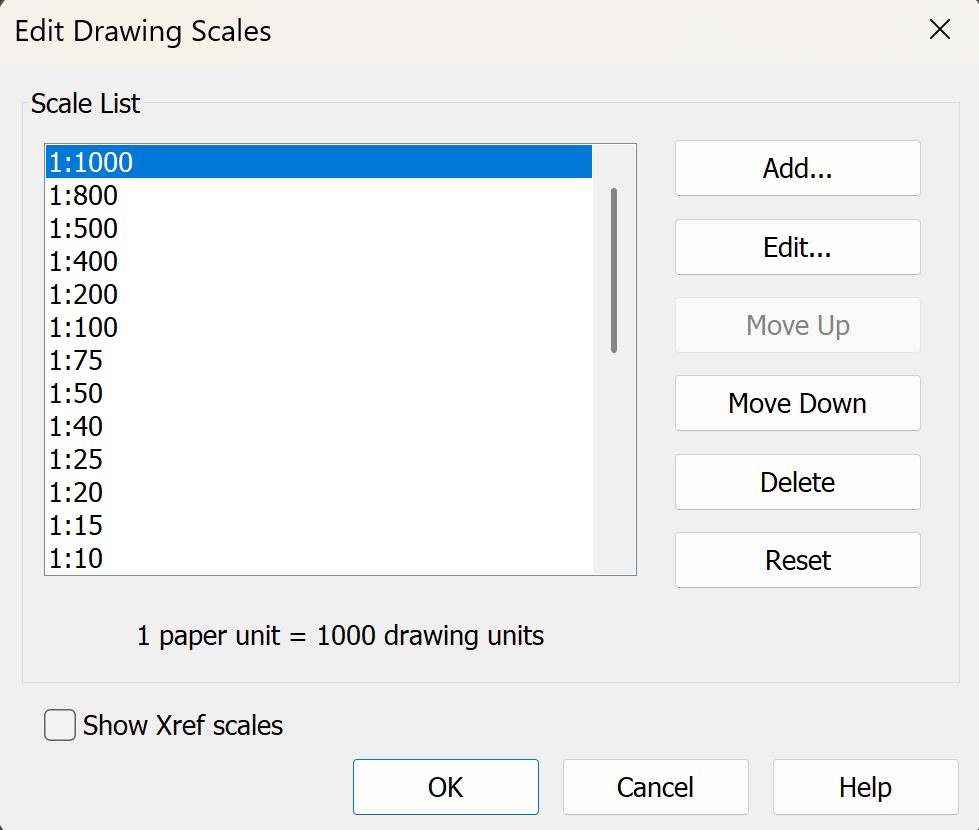
When printing or configuring a layout viewport, you specify a plot scale — for example, 1:50 or 1:100. That defines how the model’s actual units correspond to the units on paper. nanoCAD provides a standard Scale List of common ratios, editable in the Edit Drawing Scales dialog (SCALELISTEDIT). This lets you choose from standard scales commonly used in your industry instead of typing in odd custom ratios.
Symbol Scale and Measurement Scale — Keeping Annotations Legible
This is the part that does the real work. Symbol scale adjusts the display size of annotation elements — dimension text and arrows, other special text, and line types that include gaps — without touching the actual geometry at all. You can build your model at a true 1:1 scale, set a viewport to plot at 1:100, and the symbol scale will automatically keep your dimension text at a legible, consistent size on paper — rather than letting it become nearly invisible after a literal 1:100 reduction.Measurement scale solves a different, less common problem: it's for cases where the model geometry itself was deliberately not drawn at 1:1. This shows up occasionally with older drawings or specific workflows in which existing objects need their annotations to reflect the scale at which the geometry was drawn.
You can find the current scale and change it quickly using the scale button on the status bar at the bottom right of the nanoCAD window, or the dedicated Scale toolbar.
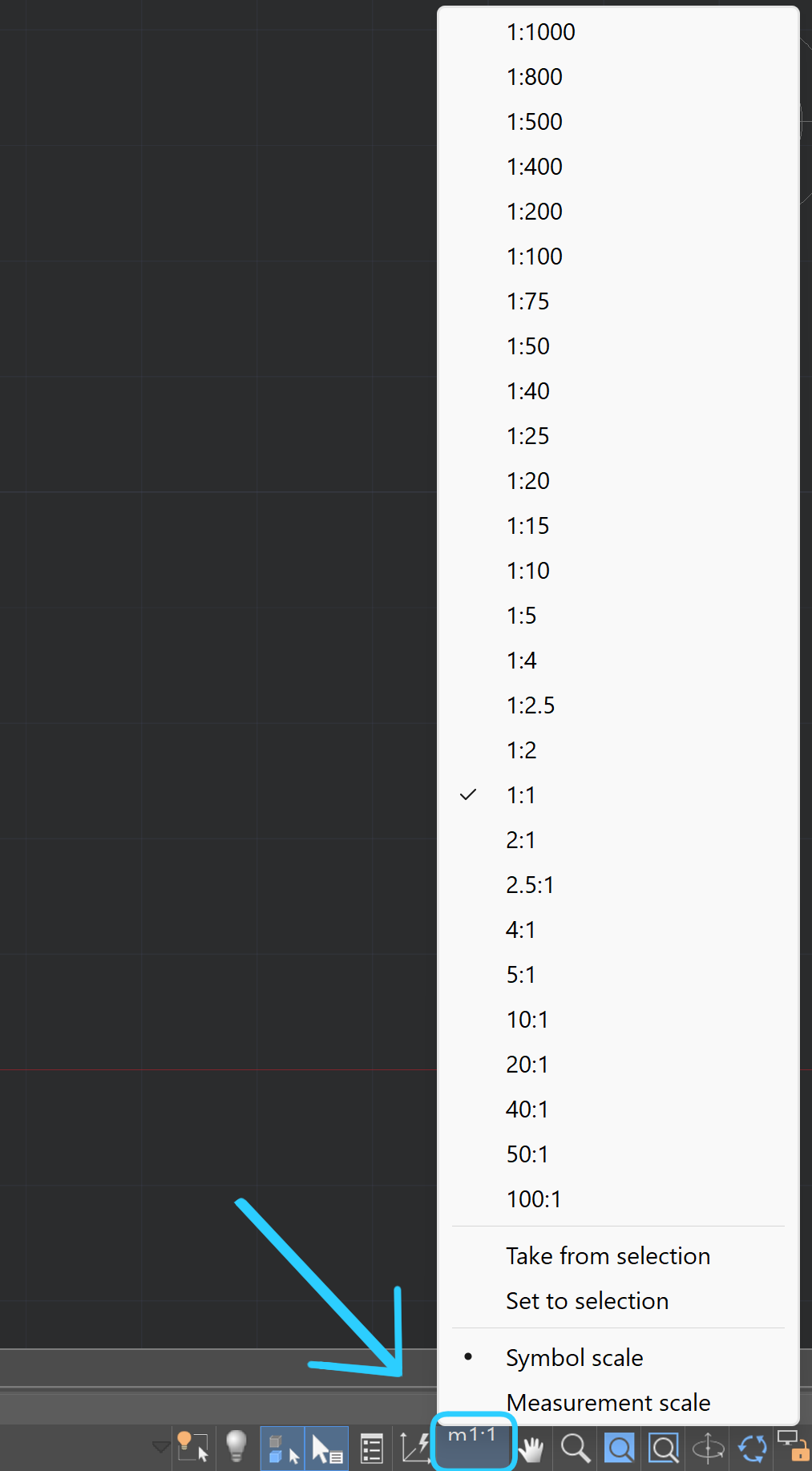
Set it with nothing selected to change the default value for newly created objects; select existing objects first to apply the change only to them.
Putting It All Together
Here's what a real workflow looks like, from start to finish: you set your drawing units to Decimal and work in millimeters. Then you draw a wall as a line 5,000 units long using absolute coordinates if you know its exact endpoints. If you’re building elements one after another, it’s more convenient to use relative coordinates or enter distances directly. In the model, the wall is, and stays, 5,000 units long — full size, with no shrinking anywhere. When it's time to document the drawing, you set a viewport or plot scale of 1:100 for an A3 sheet, and the symbol scale keeps your dimension text and arrows readable at that output size, without altering the underlying geometry in any way.That's really the entire logic of CAD in one paragraph: model at actual size, scale when outputting. Everything else in this article — unit formats, coordinate systems, and annotation scale — serves this fundamental principle.
With units, coordinates, and scale in place, you have the basic set of concepts that nanoCAD uses to describe geometry. Next, it’s time to move on to practical work and create your first real objects.
Draw something at 1:1
Units, coordinates, and annotation scale make far more sense after one real drawing than after any amount of reading. Set your units, draw a 5,000 mm wall, put it on an A3 sheet at 1:100.Download nanoCAD Platform — free 30-day trial.
Want more guides, discussions, and contacts in your field? Join the nanoCAD Engineering Community.